Ecommerce presentation
Animated Clothing Mockups for Ecommerce
Plan animated clothing mockups for ecommerce with consistent artwork, colors and backgrounds. Choose PNG, GIF or MP4 and check your product presentation.
By 3DClothings
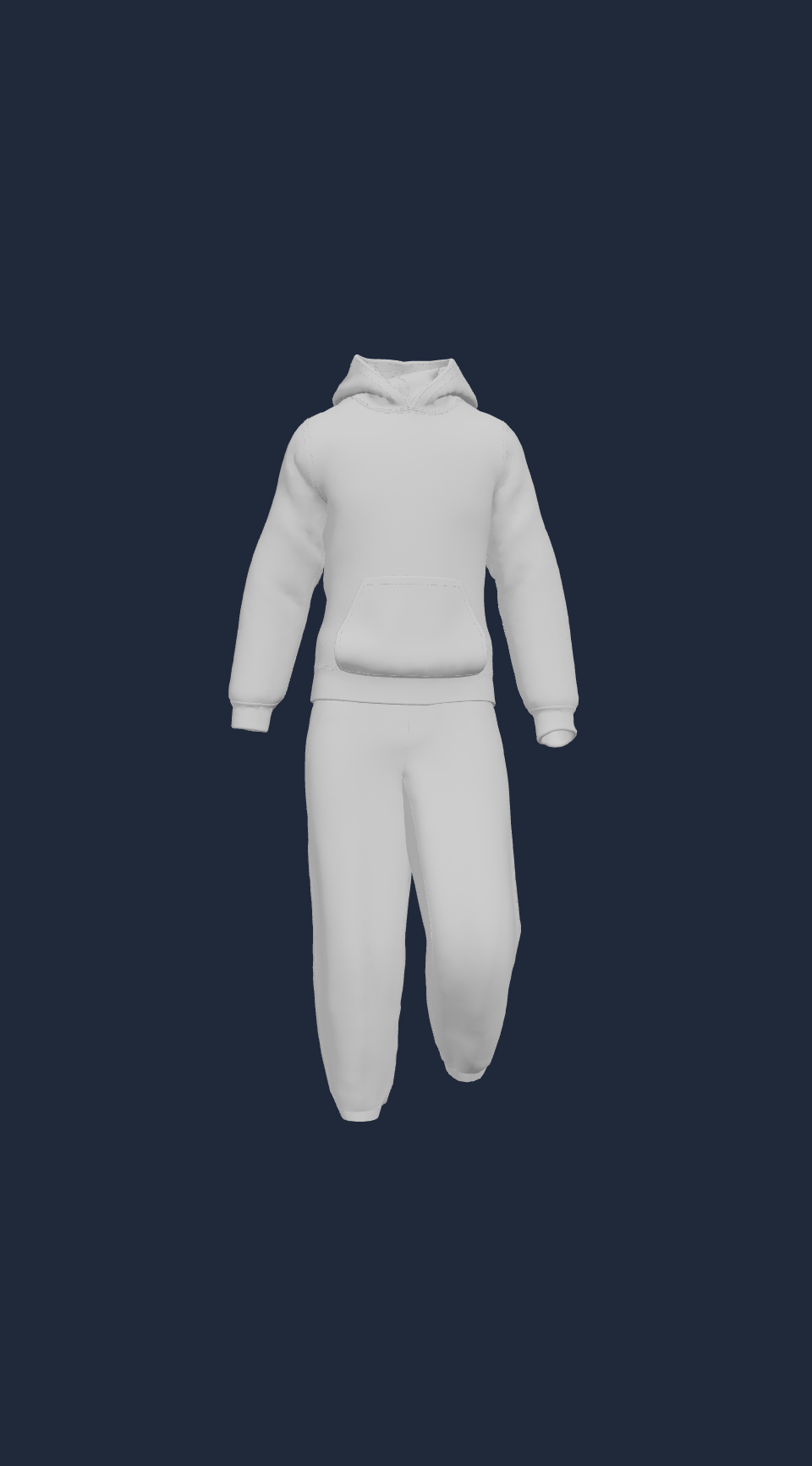
Animated clothing mockups can show how a design looks on a moving garment. For an ecommerce listing, that makes them a useful companion to still images—not a replacement for accurate product photography, sizing information, or a clear description of what the customer will receive.
3DClothings lets you place artwork on ready-made T-shirts, hoodies, zip hoodies, sweatshirts, pants, and tracksuits. You can adjust colors and backgrounds, choose walking or rotation motion, and export a still image or animation.
Choose what the animation needs to show
Start with a specific purpose. A walking preview can show the print as the garment moves. A rotation can make it easier to compare different views. A still image is useful when the customer needs to inspect lettering or a small graphic without motion.
Use the mockup to illustrate artwork placement and color ideas. Do not present a generic 3D garment as proof of the exact fit, fabric weight, construction, or drape of your real product. Where possible, include photos of a sample and clearly distinguish a digital mockup from product photography.
Create a consistent catalog presentation
Choose a background, aspect ratio, and motion style that you can reuse across a collection. Consistency makes it easier to compare designs without the background or camera framing becoming the main difference.
- Select the garment closest to the item you are presenting.
- Upload the artwork and check its panel, size, and placement.
- Choose the clothing color and a contrasting background.
- Adjust Shine and animation speed to keep the print visible.
- Review each colorway individually before downloading.
Changing the garment requires another placement check. A logo that looks centered on a shirt may not sit correctly on a zip hoodie or pants. Avoid relying on the previous garment’s preview when producing a new listing.
Match the export to its destination
The generator offers PNG, GIF, and MP4. PNG is the still-image option. GIF and MP4 provide motion, but acceptance and playback depend on your store, theme, marketplace, or social platform. Check the destination’s current upload requirements rather than assuming one format works everywhere.
Choose the aspect ratio before exporting and open the downloaded file to check the crop. Keep important artwork away from the edges so it remains visible in the intended placement. For a product gallery, a clear still image alongside an animation gives shoppers another way to inspect the design.
Signed-out exports include a watermark; signing in enables watermark-free exports. There is no direct store-publishing step in this workflow: download your files, then add them using your store’s own media controls.
Check the listing before publishing
- Use artwork you own or are licensed to use.
- Compare the mockup against your actual product or sample.
- Confirm that colors and print placement do not misrepresent the item.
- Check animation playback on the destination and on mobile.
- Add descriptive image text and accurate product details.
For usage rights, review the site’s Terms of Service alongside your artwork license. Animated previews can improve how you present an idea, but there is no guaranteed sales or conversion result. Judge them by clarity and accuracy first.